Overview
BleachBit is a well-known free and open-source system cleaner for Linux and Windows that helps you free up disk space, protect your privacy, and manage temporary files. While most users are familiar with its graphical user interface (GUI) or command-line interface (CLI), the developers have introduced a text-based user interface (TUI) as an alpha release. This TUI brings a balanced experience—combining the efficiency of the CLI with the visual structure of the GUI—all within the terminal.
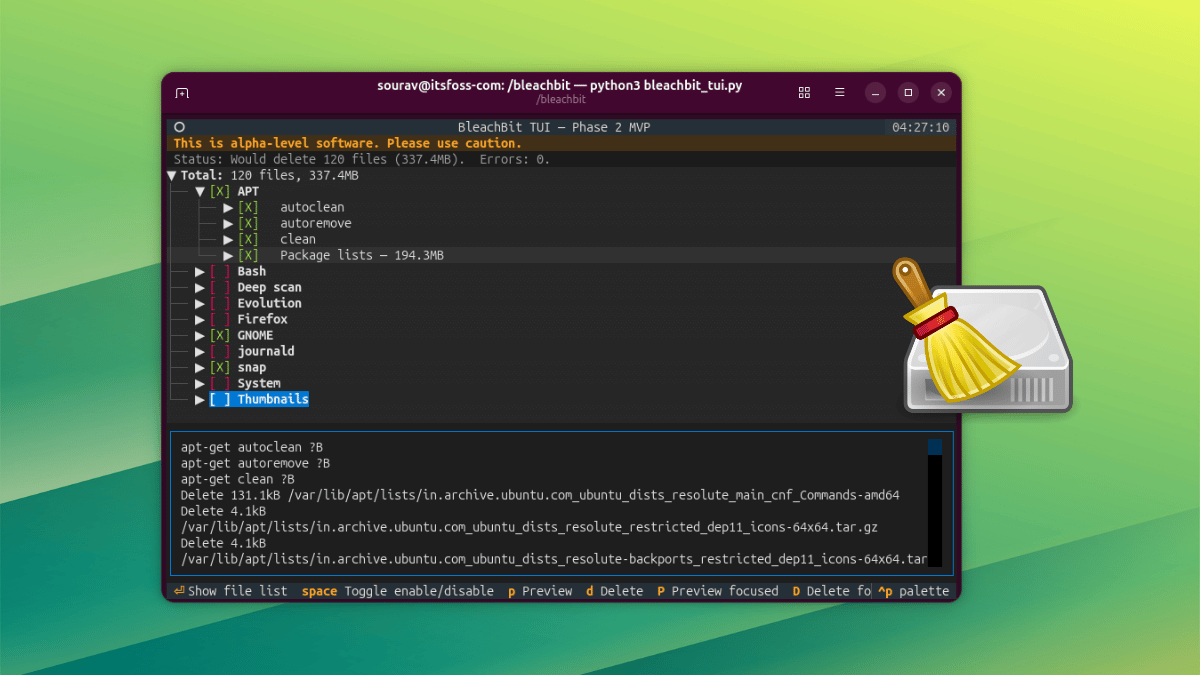
This tutorial will guide you through everything you need to know about the BleachBit TUI: what it does, how to install it, how to navigate it, and common pitfalls to avoid. Whether you're a terminal enthusiast or just looking for a lighter alternative to the GUI, this guide will help you get started.
Prerequisites
Before diving in, make sure you have the following:
- A Linux distribution (Ubuntu is used in this guide, but instructions may work on Debian-based systems)
- Python 3 installed on your system (the TUI is a Python script)
- Sudo privileges to run the tool with elevated permissions—many cleaning operations require them
- Basic familiarity with the terminal: navigating directories, running commands, and editing files (optional)
- An internet connection to download dependencies and the TUI script
Installation
Option 1: Quick Start on Ubuntu (Recommended)
The official BleachBit announcement provides a quick-start method for Ubuntu. Open your terminal and run:
sudo apt update
sudo apt install bleachbit bleachbit-tui
If the package bleachbit-tui is not available in your repository, you may need to add the BleachBit PPA:
sudo add-apt-repository ppa:bleachbit/ppa
sudo apt update
sudo apt install bleachbit-tui
Option 2: Build from Source
If the quick-start method doesn't suit your distribution, you can build from source. This gives you the latest alpha version. Clone the BleachBit repository and run the TUI script:
git clone https://github.com/bleachbit/bleachbit.git
cd bleachbit
python3 bleachbit_tui.py
You may need to install Python dependencies: pip3 install -r requirements.txt.
Running the TUI and Using It
Launching the TUI
Once installed, launch the TUI from your terminal:
sudo python3 bleachbit_tui.pyUsing sudo is crucial for many cleaning operations (e.g., cleaning system logs or package caches). Without it, you'll encounter permission errors.
Navigating the Interface
The TUI displays a list of cleaning categories (e.g., APT, Bash, Chrome, System). Use the arrow keys to move up and down. The interface is keyboard-driven:
- Spacebar – Toggle a cleaning option ON/OFF
- Enter – Expand a category to see the list of files it will clean
- p (lowercase) – Run a full preview of all selected items
- P (uppercase) – Preview only the focused (highlighted) item
- d (lowercase) – Delete everything selected
- D (uppercase) – Delete only the focused item
- Ctrl+P – Open the palette menu (search commands, maximize, quit, screenshot, help)
- Y – Confirm deletion when prompted
First Run: Preview Before Cleaning
Before deleting anything, it's wise to preview what will be removed. Press p to see a full preview. The output shows the files that would be deleted and the estimated space recovery. If you only want to see the focused item's impact, press P.
Cleaning Process
After previewing, press d to start the deletion. You'll be asked to confirm with Y. A progress bar appears, and once completed, a dialog in the bottom-right corner displays the number of files deleted and space recovered.

Using the Palette Menu
The palette menu (Ctrl+P) is a powerful feature. Use it to:
- Search commands – Quickly find and execute actions
- Maximize – Expand the selected component to fill the screen
- Quit – Exit the TUI
- Save screenshot – Capture the current screen (useful for documentation)
- Keys/Help – Display a side panel with all keyboard shortcuts
Theme and Mouse Support
The TUI supports theme switching (via settings). It also allows limited mouse interaction: you can click to select items and use the scroll wheel to scroll through lists.
Common Mistakes and How to Avoid Them
1. Running Without Sudo
Many cleaning operations require root permissions. If you run the TUI as a regular user, deletions may fail silently or with an error. Always launch with sudo unless you are certain the selected cleanups don't need elevated access.
2. Misunderstanding the Preview Keys
Lowercase p vs uppercase P can be confusing. Remember: p = full preview (all selected), P = focused preview (only the highlighted item). Use Shift or Caps Lock to produce uppercase.
3. Not Confirming Deletions
After pressing d, you must press Y to confirm. Some users assume deletion starts immediately. The confirmation is a safety net—always pay attention.
4. Forgetting to Save Settings
If you change cleaning options (using Spacebar), they are automatically saved because the TUI shares the same backend as the GUI. However, changes to the palette menu (like theme) may not persist if you don't exit properly. Use the Quit option from the palette to save state correctly.
5. Ignoring the Alpha Status
This is an alpha release. Expect bugs, incomplete features, and possible data loss if you use it recklessly. Always backup important data before running any system cleaner, including BleachBit TUI.
Summary
The BleachBit TUI offers a streamlined, keyboard-driven way to clean system junk on Linux without leaving the terminal. It combines the transparency of the CLI with the organization of the GUI, making it ideal for power users who want speed and control. With this tutorial, you can install, navigate, and use the TUI confidently. Remember to run with sudo, preview before deleting, and keep backups—especially while it's in alpha. The TUI is still under development, so stay tuned for improvements and report issues to the project on GitHub.